Dose for Excel
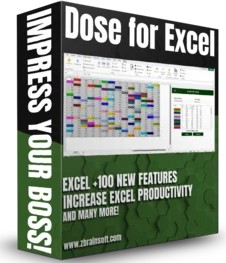
Adds More Than 100 Advanced Functions And Features For Microsoft Excel
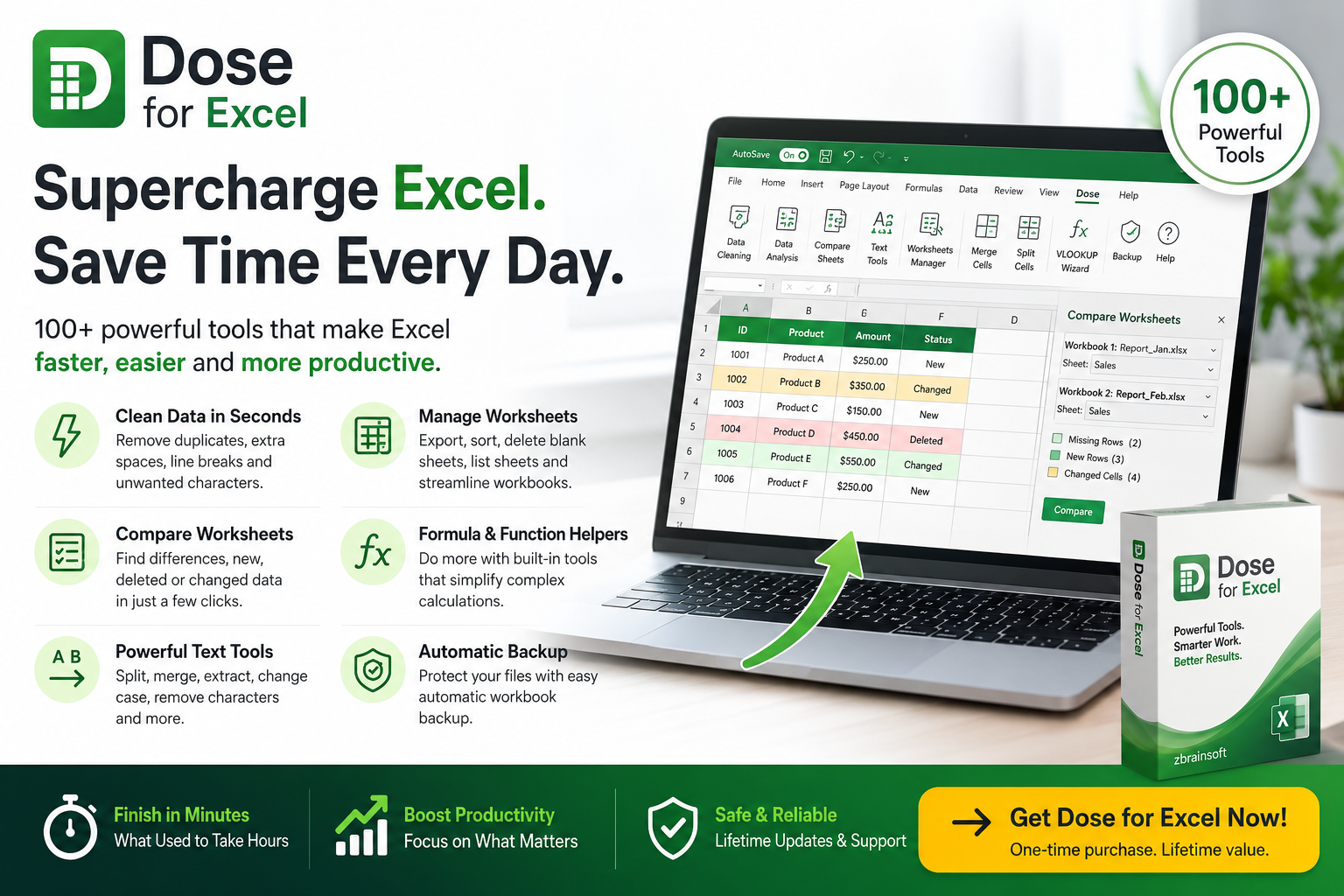
Stop Wasting Hours on Repetitive Excel Tasks
What if you could complete hours of spreadsheet work in just minutes?
Whether you're an accountant, analyst, project manager, business owner, or Excel power user, Dose for Excel helps you automate tedious tasks, clean data, compare worksheets, and work smarter—not harder.
Finally... Excel the Way It Should Have Been Built
Microsoft Excel is incredibly powerful.
But many everyday tasks still require multiple formulas, endless clicks, or complicated VBA code
.Dose for Excel fills those gaps by adding over 100 professional tools directly into Excel's Ribbon, making advanced tasks available with just a few clicks.
Save Time Every Single Day
Imagine being able to:
✅ Remove duplicate rows instantly
✅ Merge cells without losing data
✅ Compare two worksheets in seconds
✅ Clean messy data automatically
✅ Split and combine text with one click
✅ Count or summarize cells by color
✅ Insert random test data
✅ Export worksheets individually
✅ Backup workbooks automatically
No complicated formulas.No VBA.No frustration.
Who Uses Dose for Excel?
✔ Financial Analysts
✔ Accountants
✔ Data Analysts
✔ Office Professionals
✔ HR Teams
✔ Sales Managers
✔ Engineers
✔ Researchers
✔ Students
If Excel is part of your daily workflow, Dose for Excel can help you save valuable time.
Works With
✔ Microsoft Excel
✔ Microsoft 365
✔ Excel 2021
✔ Excel 2019
✔ Excel 2016
✔ Excel 2013
✔ Excel 2010
Supports both 32-bit and 64-bit versions of Windows and Excel
One Purchase. Lifetime Value.
Frequently Asked Questions
Does this replace Microsoft Excel?
No. Dose for Excel is an add-in that extends Excel with over 100 additional productivity tools.
Is programming required?
Not at all. All tools are accessed through an easy-to-use ribbon inside Excel.
Can beginners use it?
Yes. The interface is designed for both casual Excel users and advanced professionals.
Is it compatible with Microsoft 365?
Yes. It supports Microsoft 365 along with multiple standalone Excel versions.
How quickly can I start using it?
Simply install the add-in, restart Excel, and the new Dose tab appears in the Ribbon, ready to use.